> ## Documentation Index
> Fetch the complete documentation index at: https://supermemory-soham-v5-docs-attach-to-include.mintlify.site/llms.txt
> Use this file to discover all available pages before exploring further.

# ChatGPT Web

> Connect Supermemory MCP to ChatGPT Web and make Supermemory the default for memory, recall, and saved context

Connect Supermemory MCP to [ChatGPT Web](https://chatgpt.com) to use your Supermemory context directly in a conversation.

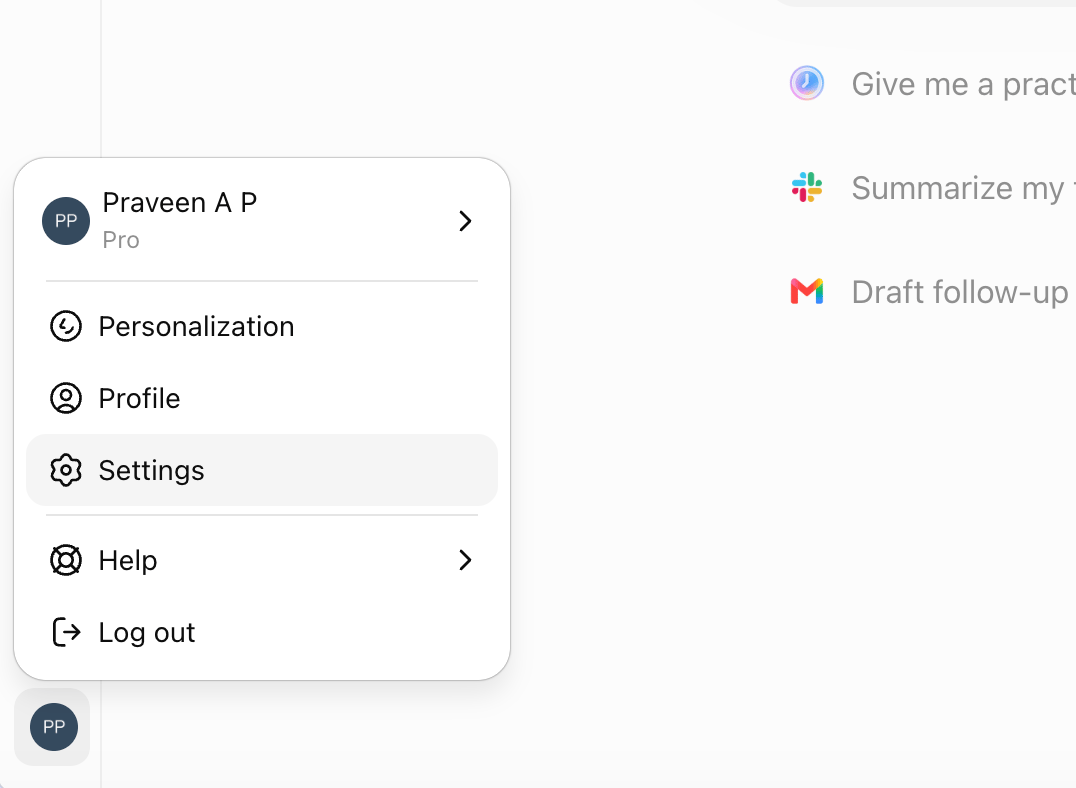
## Step 1: Open settings

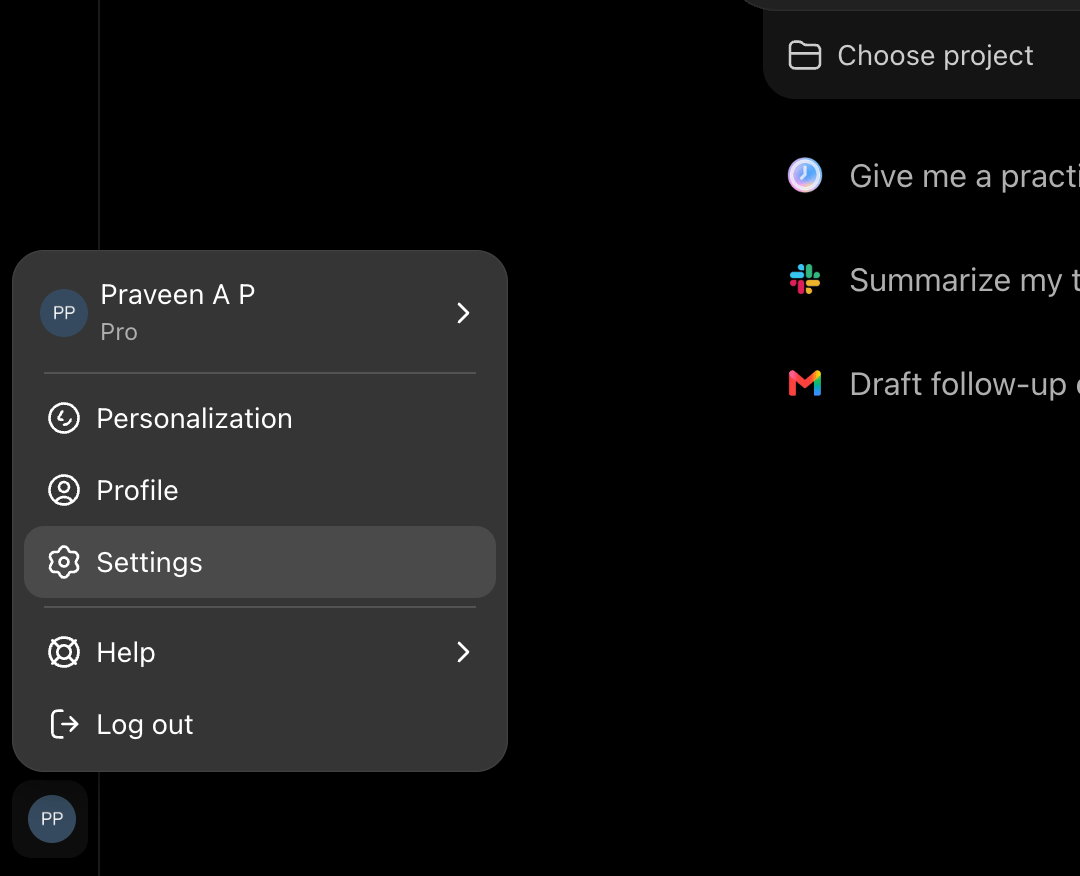
Open your profile menu in the lower-left corner of ChatGPT Web and select **Settings**.
<img className="hidden dark:block" src="https://mintcdn.com/supermemory-soham-v5-docs-attach-to-include/p14OPaq5ji7ZESB5/images/supermemory-mcp/chatgpt-web/step-1-settings-dark.png?fit=max&auto=format&n=p14OPaq5ji7ZESB5&q=85&s=652ff84e3d2b5f45b0818bc5ba993afb" alt="ChatGPT Web profile menu in dark mode with Settings highlighted" width="1080" height="876" data-path="images/supermemory-mcp/chatgpt-web/step-1-settings-dark.png" />

<img className="block dark:hidden" src="https://mintcdn.com/supermemory-soham-v5-docs-attach-to-include/p14OPaq5ji7ZESB5/images/supermemory-mcp/chatgpt-web/step-1-settings-light.png?fit=max&auto=format&n=p14OPaq5ji7ZESB5&q=85&s=6c9587b9116bc34360340c421a92c8ec" alt="ChatGPT Web profile menu in light mode with Settings highlighted" width="1076" height="788" data-path="images/supermemory-mcp/chatgpt-web/step-1-settings-light.png" />

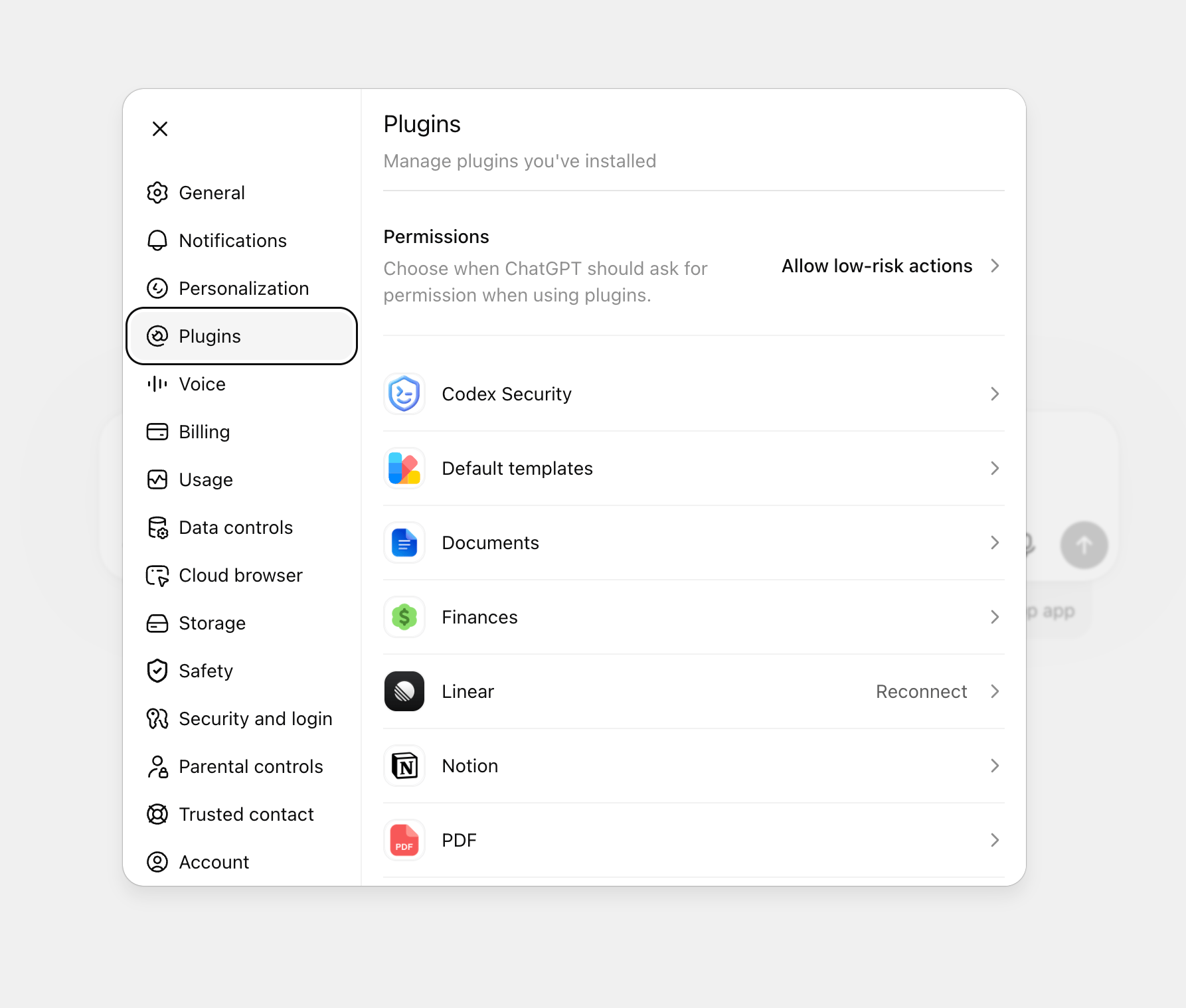
## Step 2: Open plugins

Select **Plugins** in the Settings sidebar.
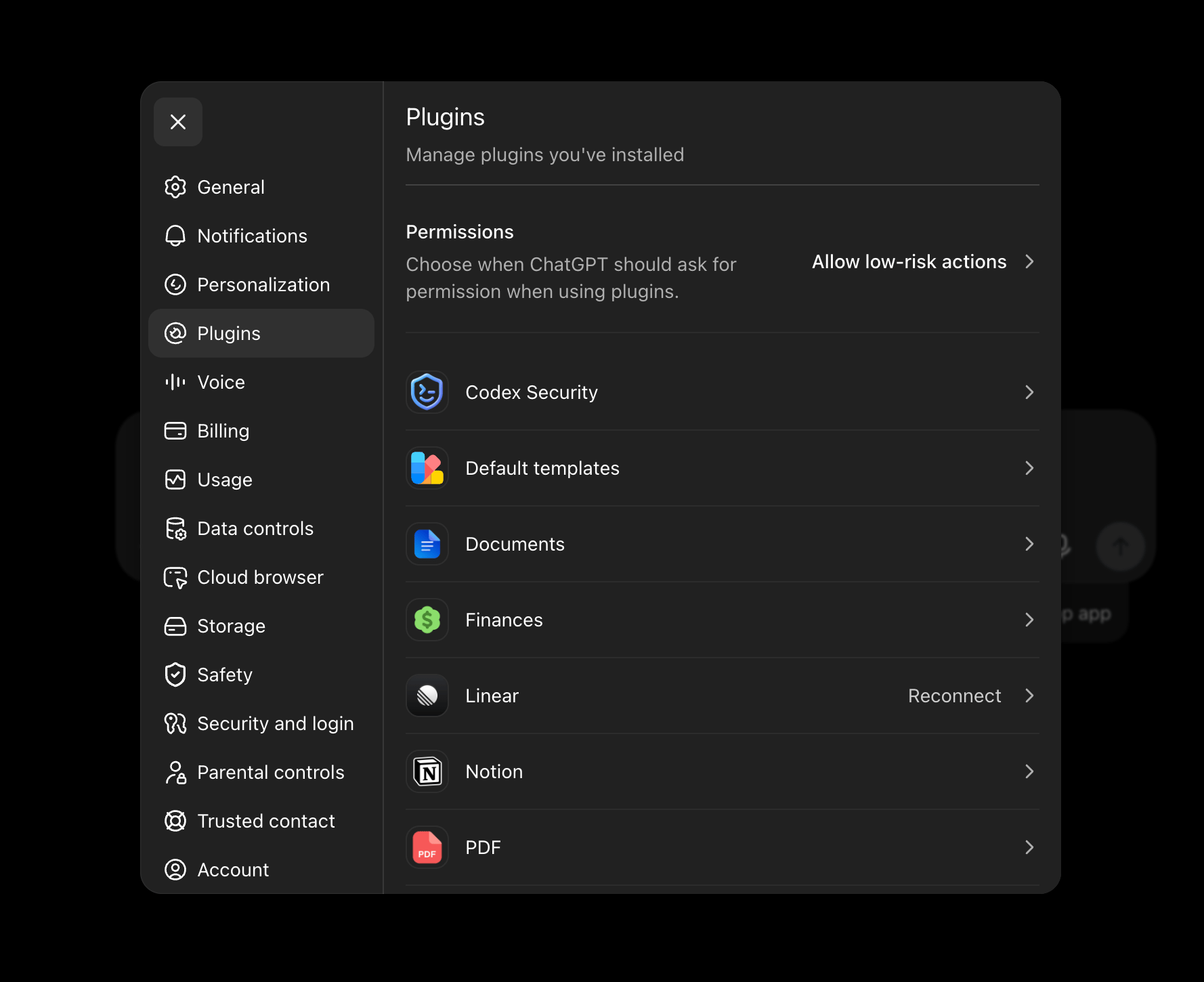
<img className="hidden dark:block" src="https://mintcdn.com/supermemory-soham-v5-docs-attach-to-include/p14OPaq5ji7ZESB5/images/supermemory-mcp/chatgpt-web/step-2-plugins-dark.png?fit=max&auto=format&n=p14OPaq5ji7ZESB5&q=85&s=7dfaf5e1835d918983ecaa9e17518a5d" alt="ChatGPT Web Plugins settings in dark mode" width="1778" height="1450" data-path="images/supermemory-mcp/chatgpt-web/step-2-plugins-dark.png" />

<img className="block dark:hidden" src="https://mintcdn.com/supermemory-soham-v5-docs-attach-to-include/p14OPaq5ji7ZESB5/images/supermemory-mcp/chatgpt-web/step-2-plugins-light.png?fit=max&auto=format&n=p14OPaq5ji7ZESB5&q=85&s=cff2cfee6877099480ac5e7459f5d62d" alt="ChatGPT Web Plugins settings in light mode" width="1786" height="1518" data-path="images/supermemory-mcp/chatgpt-web/step-2-plugins-light.png" />

## Step 3: Open developer mode

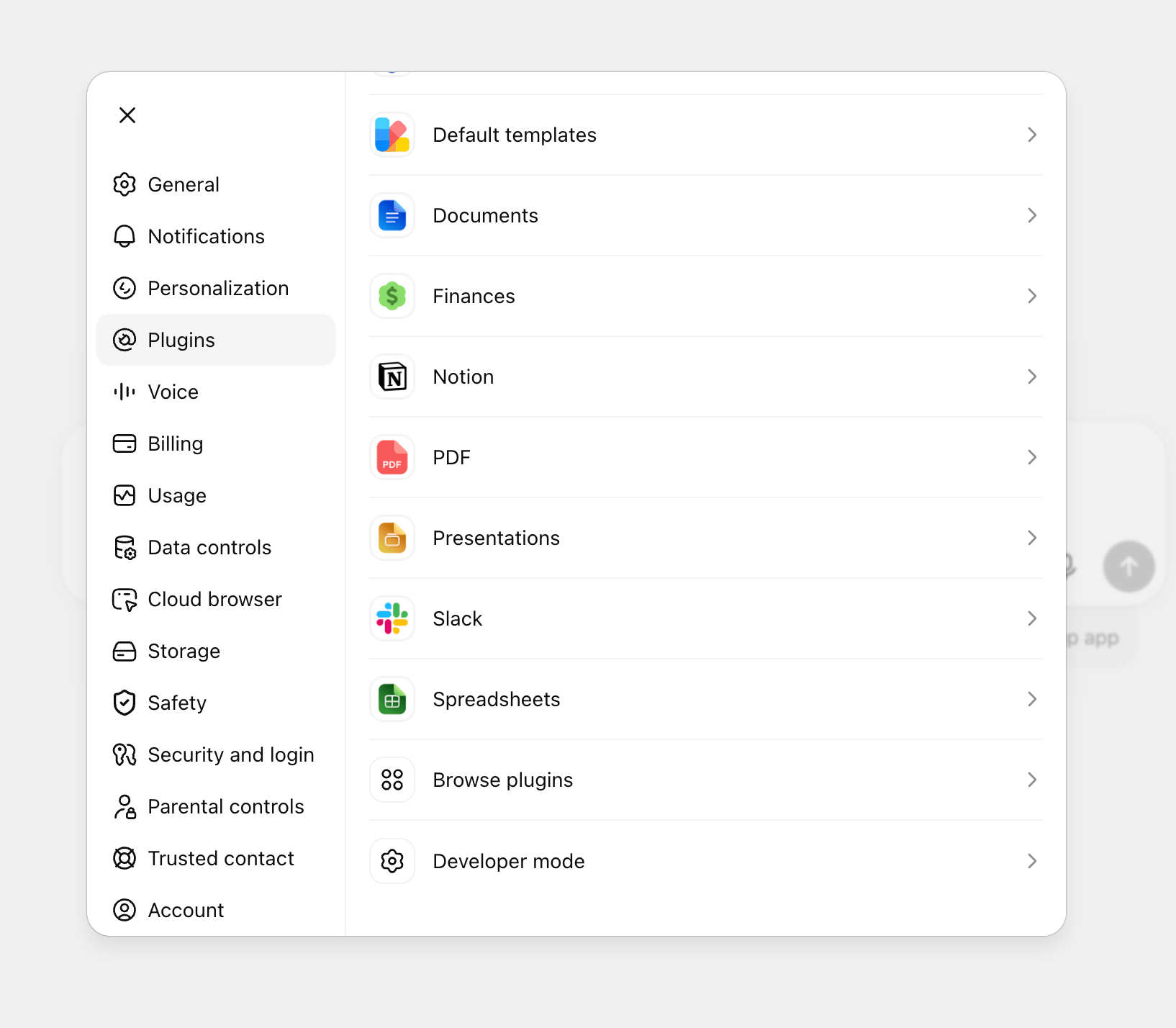
Scroll to the bottom of **Plugins** and select **Developer mode**.
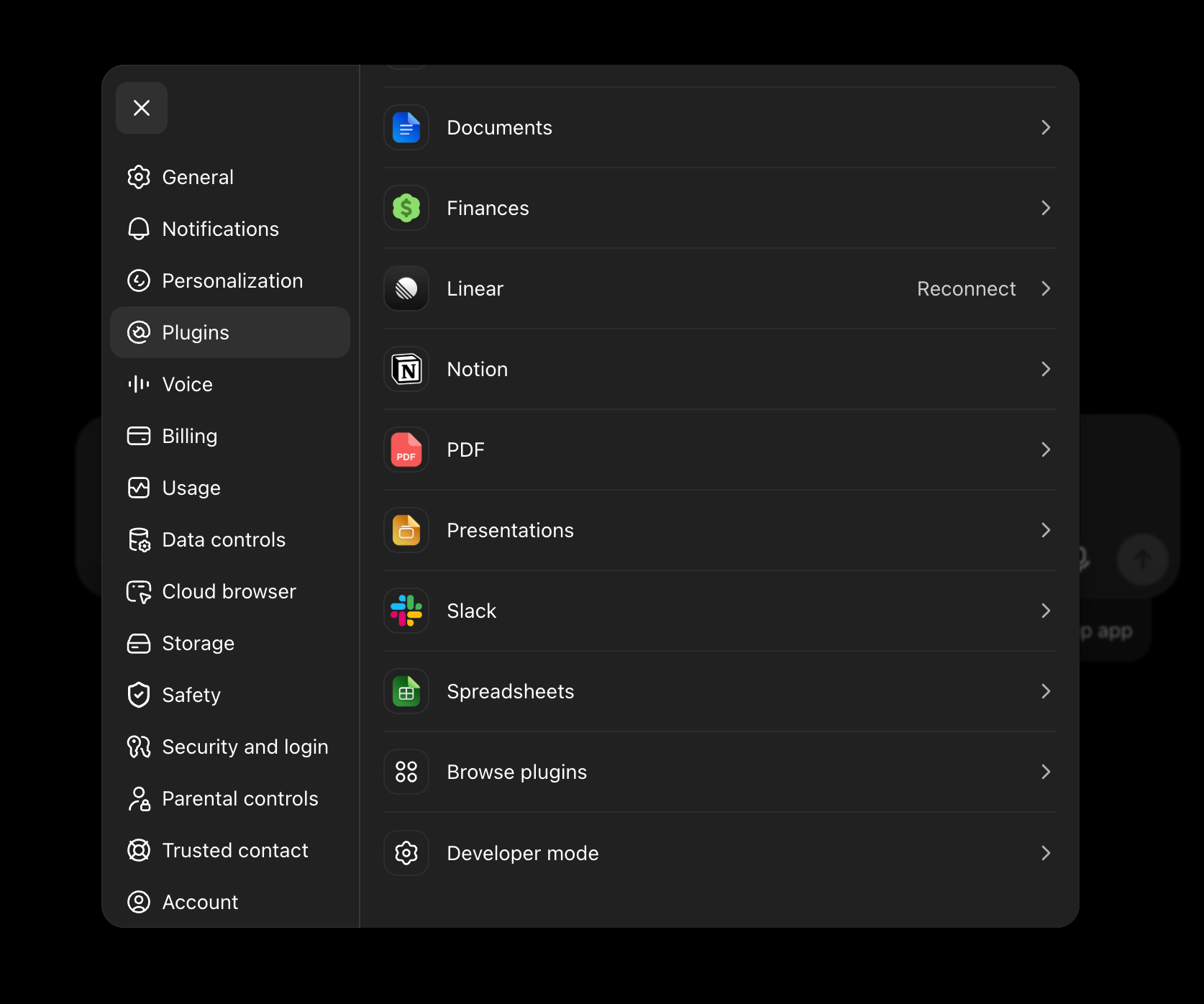
<img className="hidden dark:block" src="https://mintcdn.com/supermemory-soham-v5-docs-attach-to-include/2YgmU37JdCzCryiW/images/supermemory-mcp/chatgpt-web/step-3-plugins-bottom-dark.png?fit=max&auto=format&n=2YgmU37JdCzCryiW&q=85&s=deb1589345f6e5409cb9e01af20638ef" alt="Developer mode and Browse plugins at the bottom of ChatGPT Web Plugins settings in dark mode" width="1674" height="1396" data-path="images/supermemory-mcp/chatgpt-web/step-3-plugins-bottom-dark.png" />

<img className="block dark:hidden" src="https://mintcdn.com/supermemory-soham-v5-docs-attach-to-include/2YgmU37JdCzCryiW/images/supermemory-mcp/chatgpt-web/step-3-plugins-bottom-light.png?fit=max&auto=format&n=2YgmU37JdCzCryiW&q=85&s=98eaaf7c2ecb7f3c4478ca85e38f405b" alt="Developer mode and Browse plugins at the bottom of ChatGPT Web Plugins settings in light mode" width="1634" height="1428" data-path="images/supermemory-mcp/chatgpt-web/step-3-plugins-bottom-light.png" />

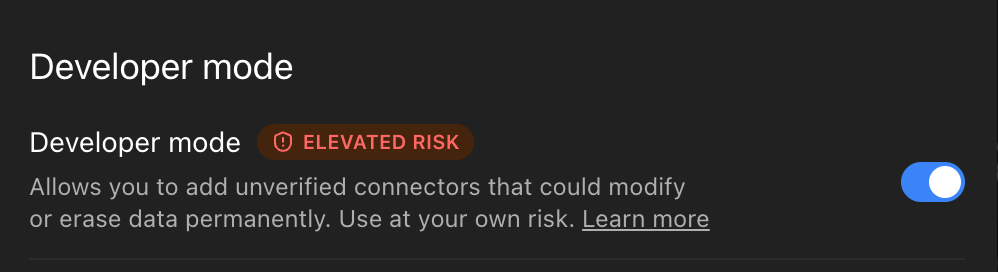
## Step 4: Enable developer mode

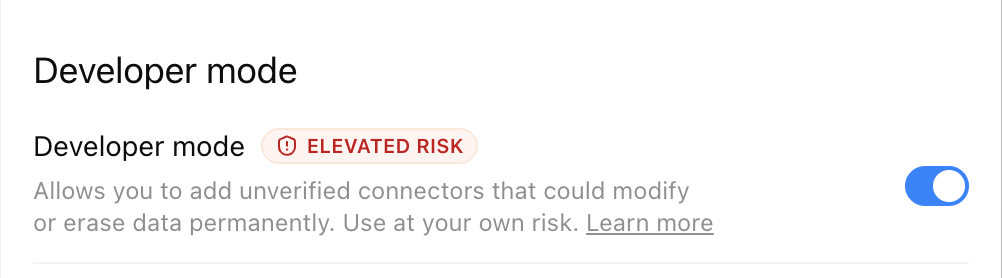
ChatGPT opens the **Developer mode** section under **Security and login**. Turn **Developer mode** on.
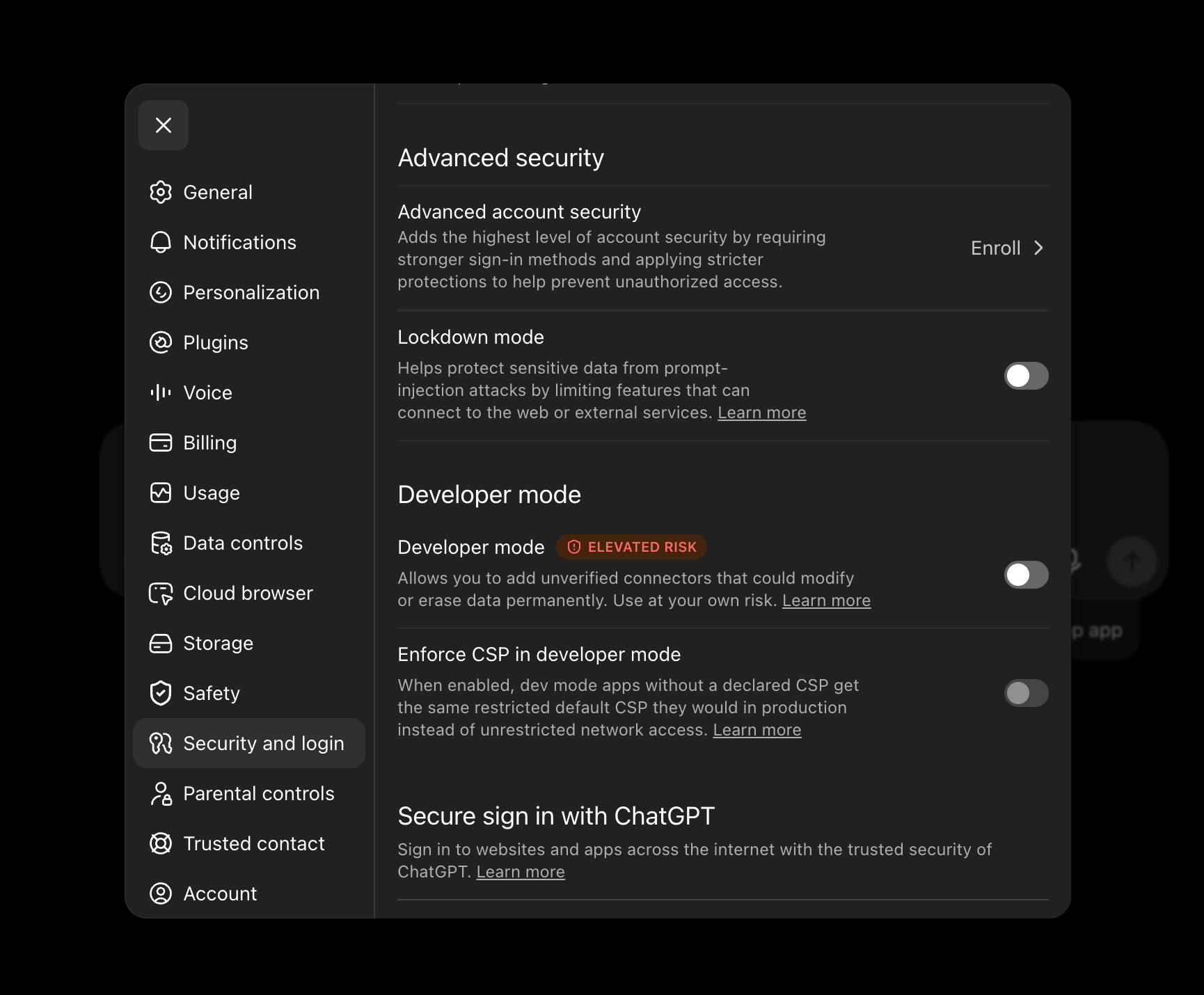
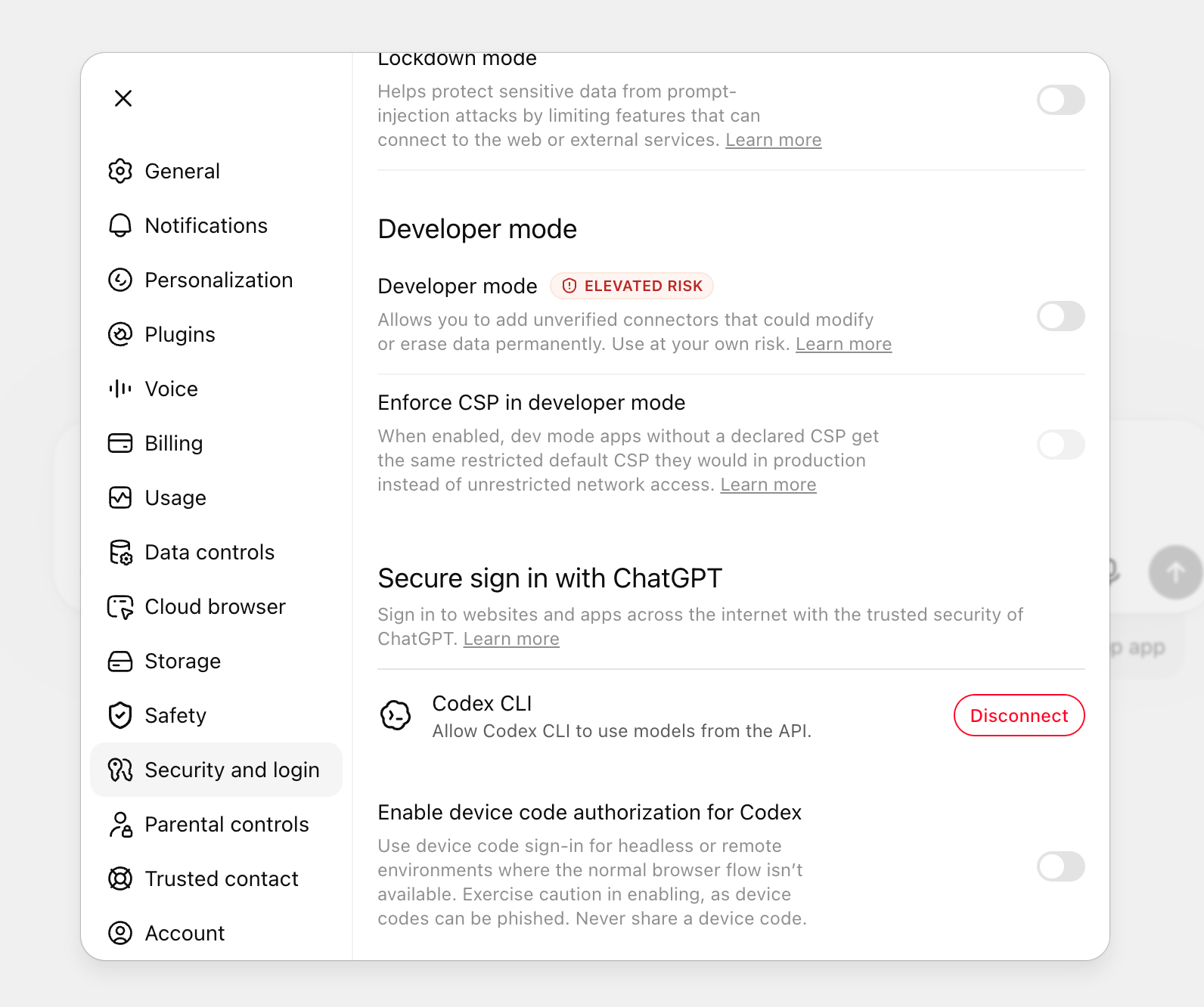
<img className="hidden dark:block" src="https://mintcdn.com/supermemory-soham-v5-docs-attach-to-include/2YgmU37JdCzCryiW/images/supermemory-mcp/chatgpt-web/step-4-developer-mode-page-dark.png?fit=max&auto=format&n=2YgmU37JdCzCryiW&q=85&s=94a04c0246a78c1ce511229973a9368c" alt="Developer mode section under Security and login in ChatGPT Web dark mode" width="1730" height="1430" data-path="images/supermemory-mcp/chatgpt-web/step-4-developer-mode-page-dark.png" />

<img className="block dark:hidden" src="https://mintcdn.com/supermemory-soham-v5-docs-attach-to-include/2YgmU37JdCzCryiW/images/supermemory-mcp/chatgpt-web/step-4-developer-mode-page-light.png?fit=max&auto=format&n=2YgmU37JdCzCryiW&q=85&s=e7aa260d63f1601ff89202e6fd09395e" alt="Developer mode section under Security and login in ChatGPT Web light mode" width="1592" height="1332" data-path="images/supermemory-mcp/chatgpt-web/step-4-developer-mode-page-light.png" />

<img className="hidden dark:block" src="https://mintcdn.com/supermemory-soham-v5-docs-attach-to-include/2YgmU37JdCzCryiW/images/supermemory-mcp/chatgpt-web/step-4-developer-mode-on-dark.png?fit=max&auto=format&n=2YgmU37JdCzCryiW&q=85&s=71e198a4374a4e365ff441fe5b627404" alt="Developer mode enabled in ChatGPT Web dark mode" width="998" height="272" data-path="images/supermemory-mcp/chatgpt-web/step-4-developer-mode-on-dark.png" />

<img className="block dark:hidden" src="https://mintcdn.com/supermemory-soham-v5-docs-attach-to-include/2YgmU37JdCzCryiW/images/supermemory-mcp/chatgpt-web/step-4-developer-mode-on-light.png?fit=max&auto=format&n=2YgmU37JdCzCryiW&q=85&s=4c6293f9e03f47a1e713aa1ed8ee6ccf" alt="Developer mode enabled in ChatGPT Web light mode" width="1002" height="278" data-path="images/supermemory-mcp/chatgpt-web/step-4-developer-mode-on-light.png" />

## Step 5: Open browse plugins

Return to **Plugins**, scroll to the bottom, and select **Browse plugins**.

<img className="hidden dark:block" src="https://mintcdn.com/supermemory-soham-v5-docs-attach-to-include/2YgmU37JdCzCryiW/images/supermemory-mcp/chatgpt-web/step-3-plugins-bottom-dark.png?fit=max&auto=format&n=2YgmU37JdCzCryiW&q=85&s=deb1589345f6e5409cb9e01af20638ef" alt="Browse plugins at the bottom of ChatGPT Web Plugins settings in dark mode" width="1674" height="1396" data-path="images/supermemory-mcp/chatgpt-web/step-3-plugins-bottom-dark.png" />

<img className="block dark:hidden" src="https://mintcdn.com/supermemory-soham-v5-docs-attach-to-include/2YgmU37JdCzCryiW/images/supermemory-mcp/chatgpt-web/step-3-plugins-bottom-light.png?fit=max&auto=format&n=2YgmU37JdCzCryiW&q=85&s=98eaaf7c2ecb7f3c4478ca85e38f405b" alt="Browse plugins at the bottom of ChatGPT Web Plugins settings in light mode" width="1634" height="1428" data-path="images/supermemory-mcp/chatgpt-web/step-3-plugins-bottom-light.png" />

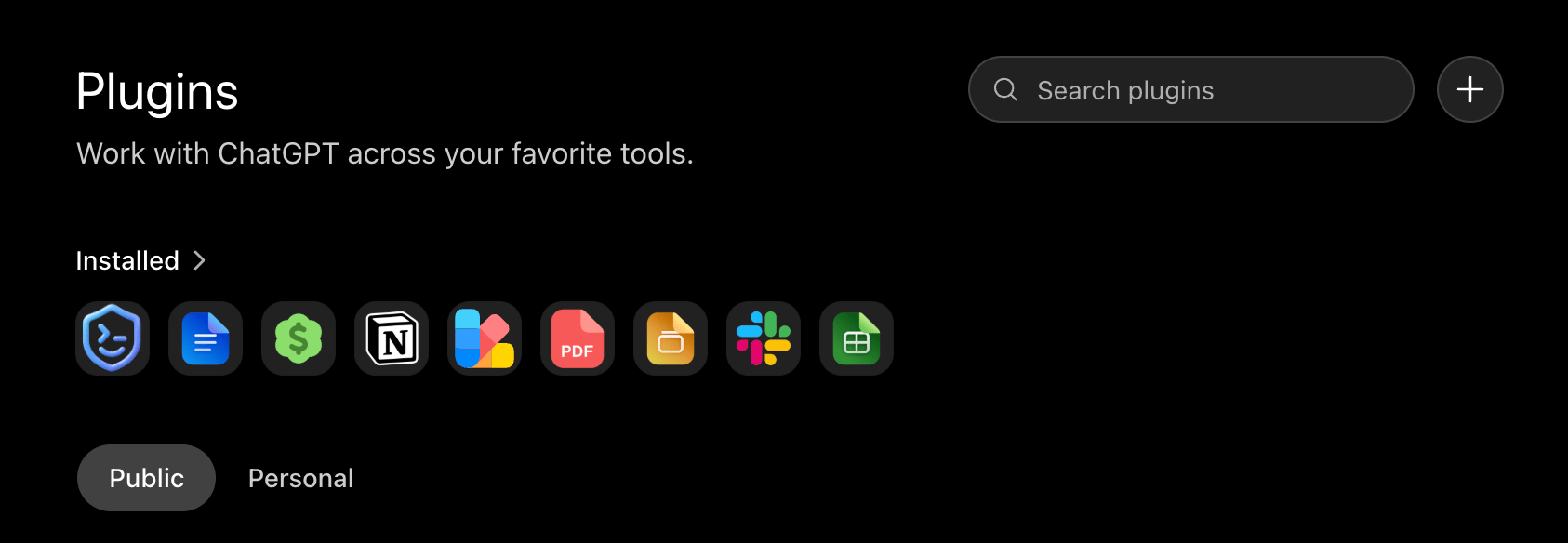
## Step 6: Add a plugin

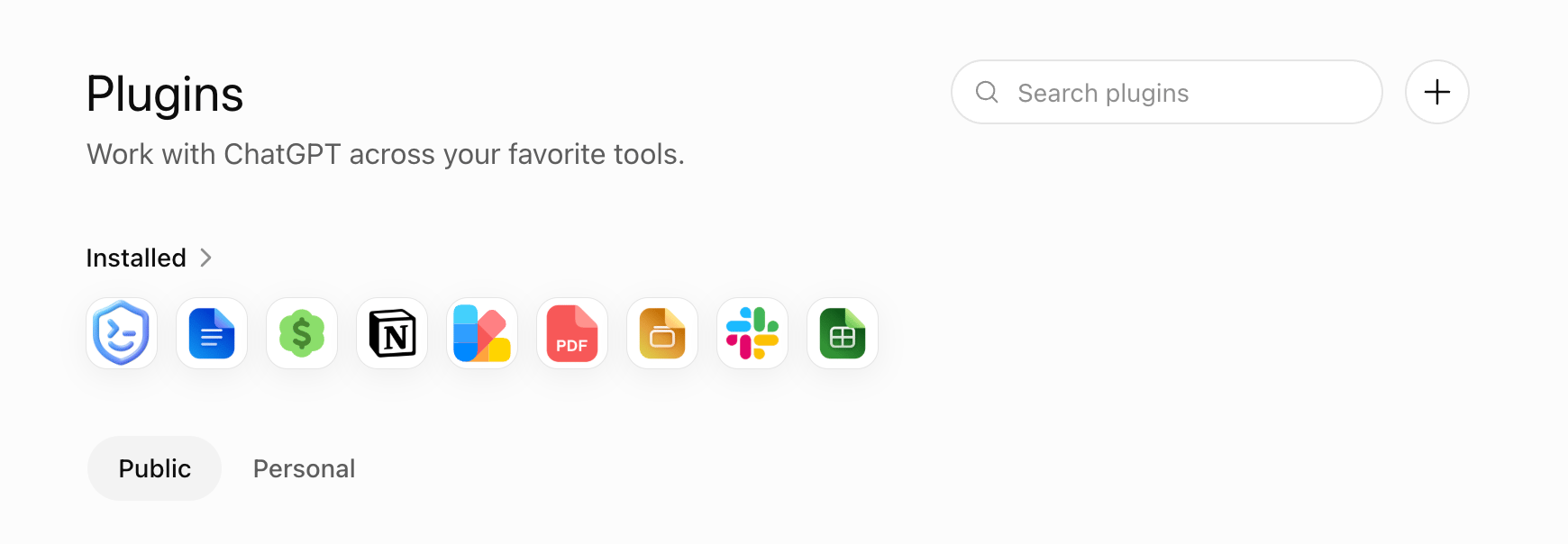
On the Plugins page, select the **plus icon** in the upper-right corner.
<img className="hidden dark:block" src="https://mintcdn.com/supermemory-soham-v5-docs-attach-to-include/2YgmU37JdCzCryiW/images/supermemory-mcp/chatgpt-web/step-6-plugin-directory-dark.png?fit=max&auto=format&n=2YgmU37JdCzCryiW&q=85&s=9976f543150746b84534cb22ff1c6738" alt="ChatGPT Web Plugins page in dark mode with the plus icon" width="1686" height="584" data-path="images/supermemory-mcp/chatgpt-web/step-6-plugin-directory-dark.png" />

<img className="block dark:hidden" src="https://mintcdn.com/supermemory-soham-v5-docs-attach-to-include/2YgmU37JdCzCryiW/images/supermemory-mcp/chatgpt-web/step-6-plugin-directory-light.png?fit=max&auto=format&n=2YgmU37JdCzCryiW&q=85&s=6a87f398377af4eefc79c2ae717da463" alt="ChatGPT Web Plugins page in light mode with the plus icon" width="1740" height="604" data-path="images/supermemory-mcp/chatgpt-web/step-6-plugin-directory-light.png" />

## Step 7: Enter the Supermemory details

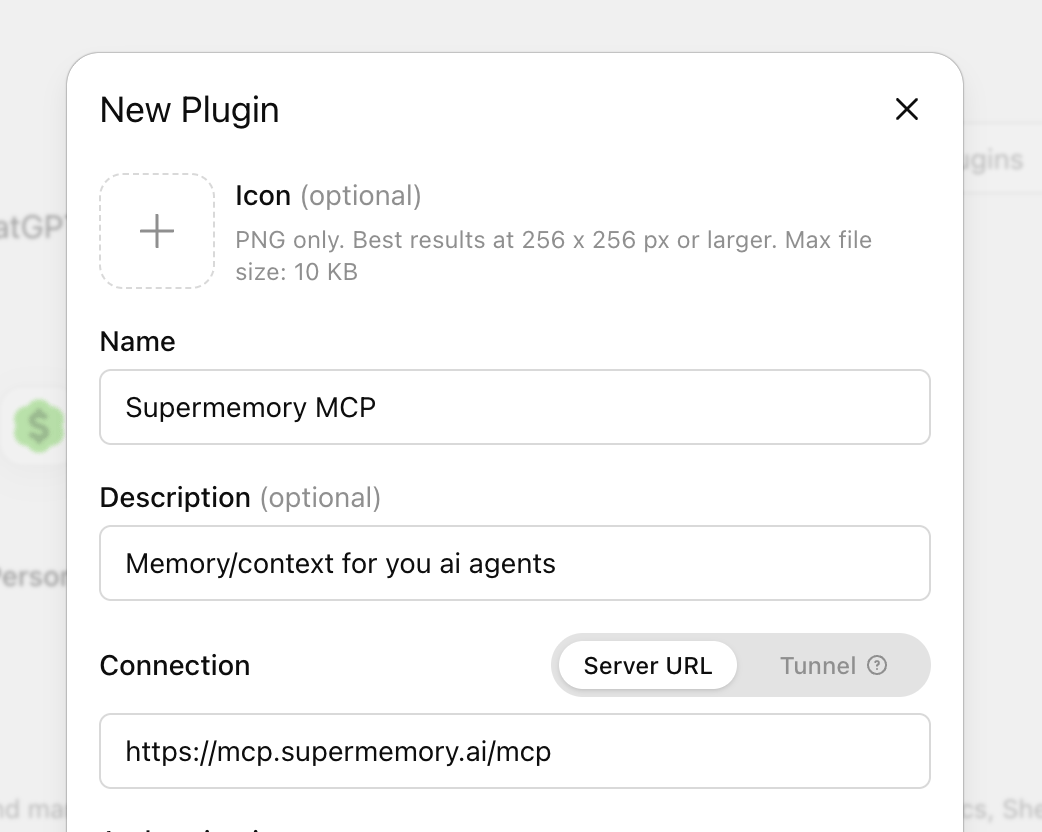
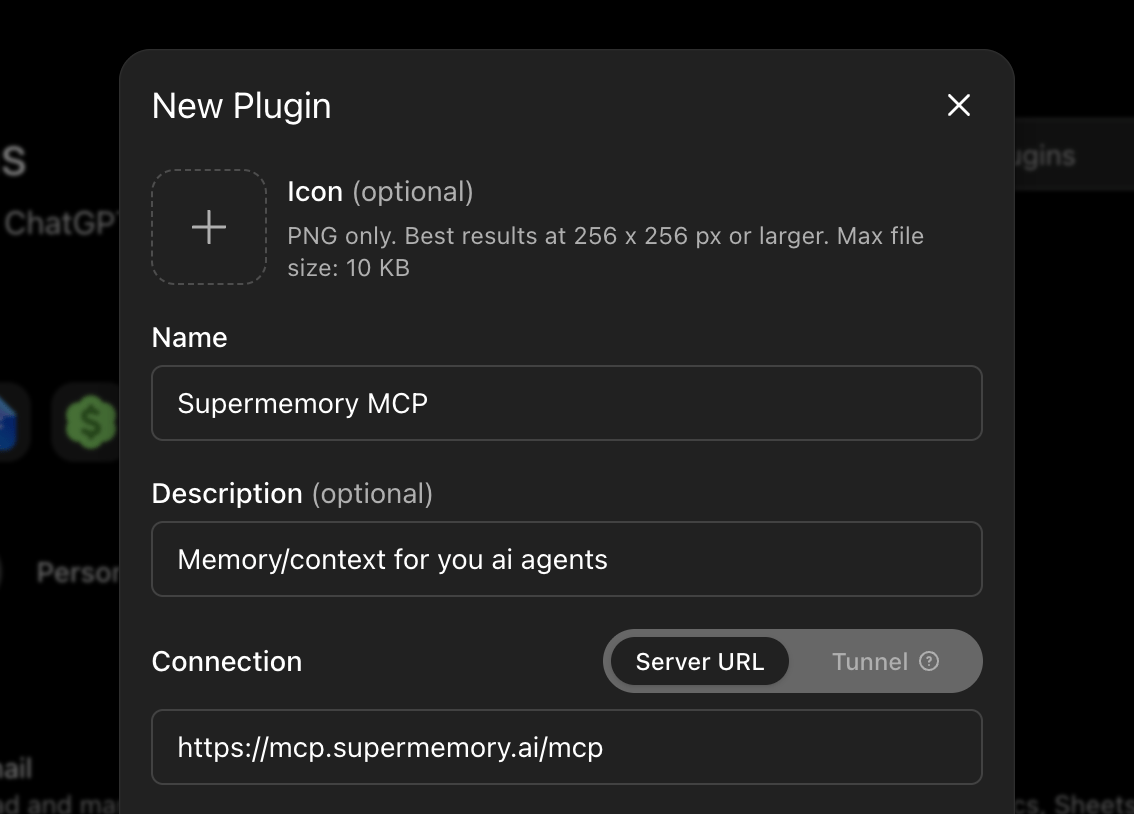
Complete the **New Plugin** form:

* In **Name**, enter `Supermemory MCP`.
* In **Description**, enter `Memory/context for your AI agents`.
* Under **Connection**, select **Server URL** instead of **Tunnel**.
* In the URL field, paste `https://mcp.supermemory.ai/mcp`.

The icon is optional. Leave **Advanced OAuth settings** unchanged.
<img className="hidden dark:block" src="https://mintcdn.com/supermemory-soham-v5-docs-attach-to-include/2YgmU37JdCzCryiW/images/supermemory-mcp/chatgpt-web/step-7-details-dark.png?fit=max&auto=format&n=2YgmU37JdCzCryiW&q=85&s=d188caa5e3ce142d33579e0f8a514670" alt="New Plugin form in dark mode filled with the Supermemory MCP details" width="1134" height="814" data-path="images/supermemory-mcp/chatgpt-web/step-7-details-dark.png" />

<img className="block dark:hidden" src="https://mintcdn.com/supermemory-soham-v5-docs-attach-to-include/2YgmU37JdCzCryiW/images/supermemory-mcp/chatgpt-web/step-7-details-light.png?fit=max&auto=format&n=2YgmU37JdCzCryiW&q=85&s=252764def8791886811a8df179be5ef1" alt="New Plugin form in light mode filled with the Supermemory MCP details" width="1042" height="832" data-path="images/supermemory-mcp/chatgpt-web/step-7-details-light.png" />

## Step 8: Confirm and create

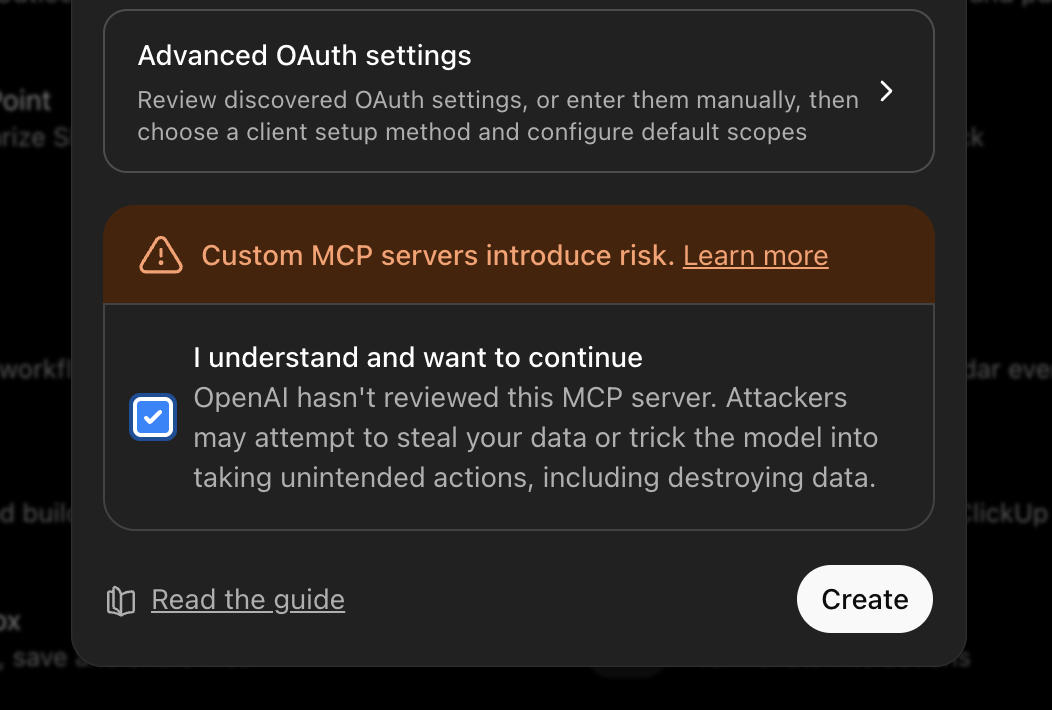
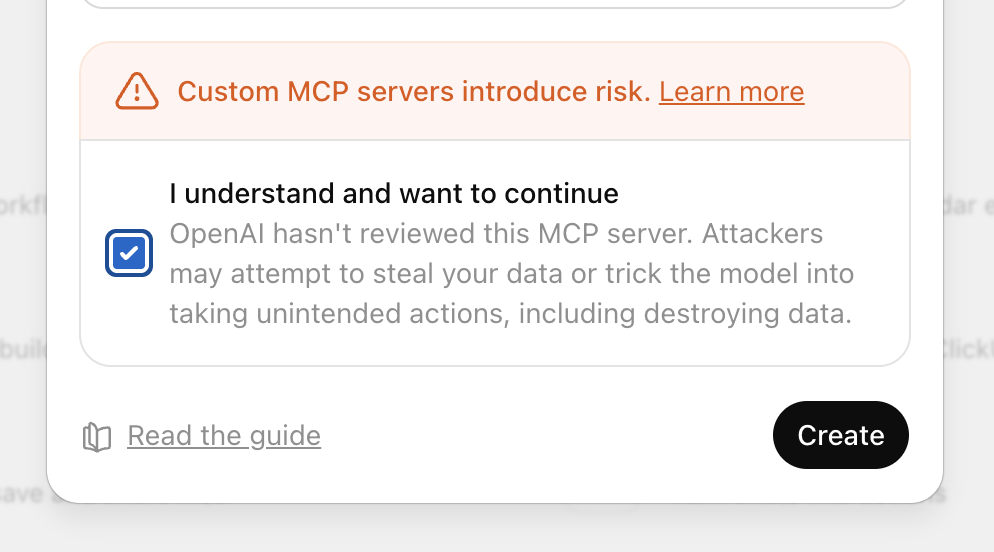
Scroll to the bottom of the form. Select **I understand and want to continue**, then select **Create**.
<img className="hidden dark:block" src="https://mintcdn.com/supermemory-soham-v5-docs-attach-to-include/2YgmU37JdCzCryiW/images/supermemory-mcp/chatgpt-web/step-8-confirm-dark.png?fit=max&auto=format&n=2YgmU37JdCzCryiW&q=85&s=c2b2bc65d1118a1392e3301d45ad4bfe" alt="New Plugin confirmation in dark mode with the acknowledgement selected" width="1052" height="710" data-path="images/supermemory-mcp/chatgpt-web/step-8-confirm-dark.png" />

<img className="block dark:hidden" src="https://mintcdn.com/supermemory-soham-v5-docs-attach-to-include/2YgmU37JdCzCryiW/images/supermemory-mcp/chatgpt-web/step-8-confirm-light.png?fit=max&auto=format&n=2YgmU37JdCzCryiW&q=85&s=d7c152380d538d4c2ef737b7778b7a3a" alt="New Plugin confirmation in light mode with the acknowledgement selected" width="994" height="552" data-path="images/supermemory-mcp/chatgpt-web/step-8-confirm-light.png" />

## Step 9: Sign in to Supermemory

ChatGPT opens the **Add Supermemory MCP to ChatGPT** dialog. Select **Sign in with Supermemory MCP**.
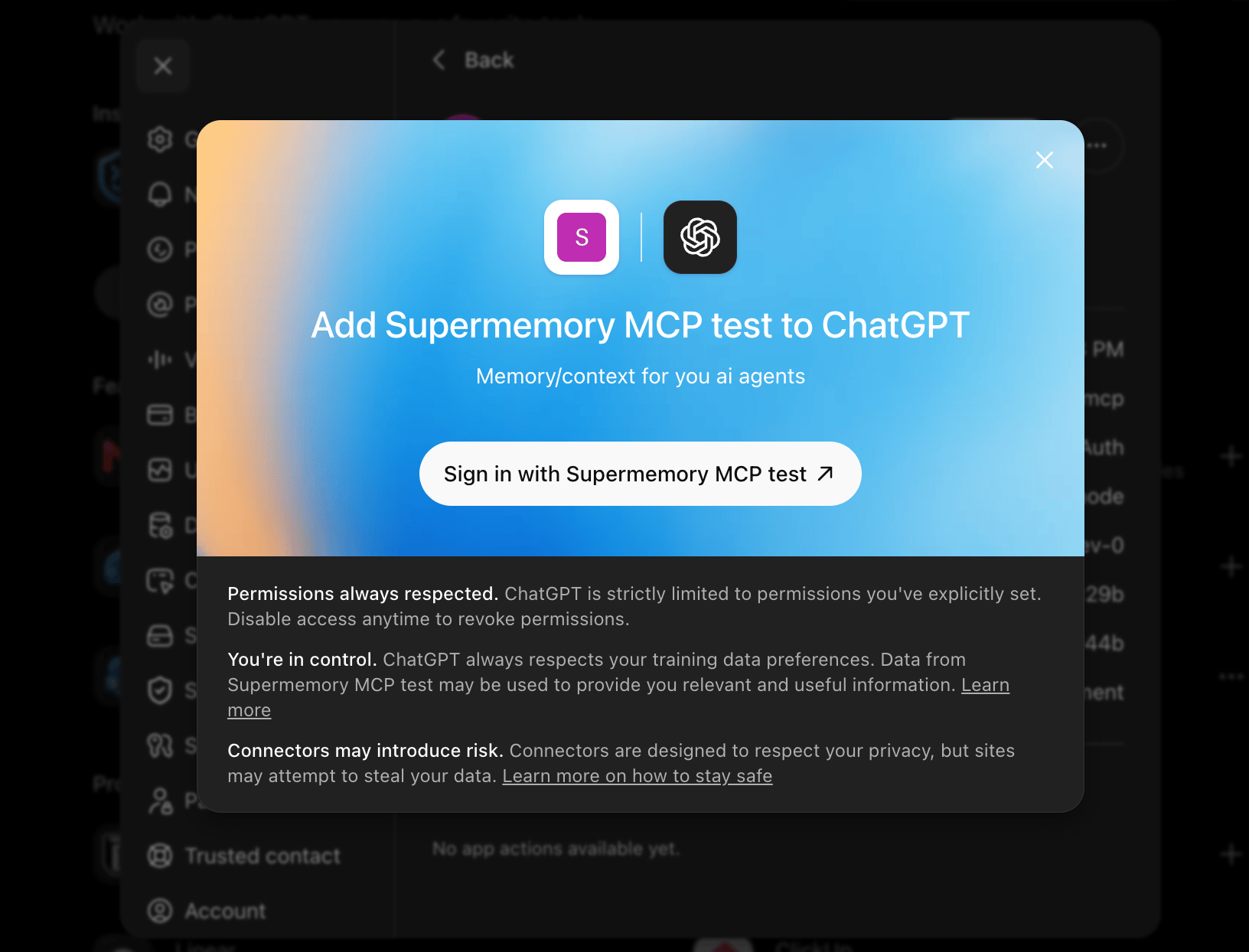
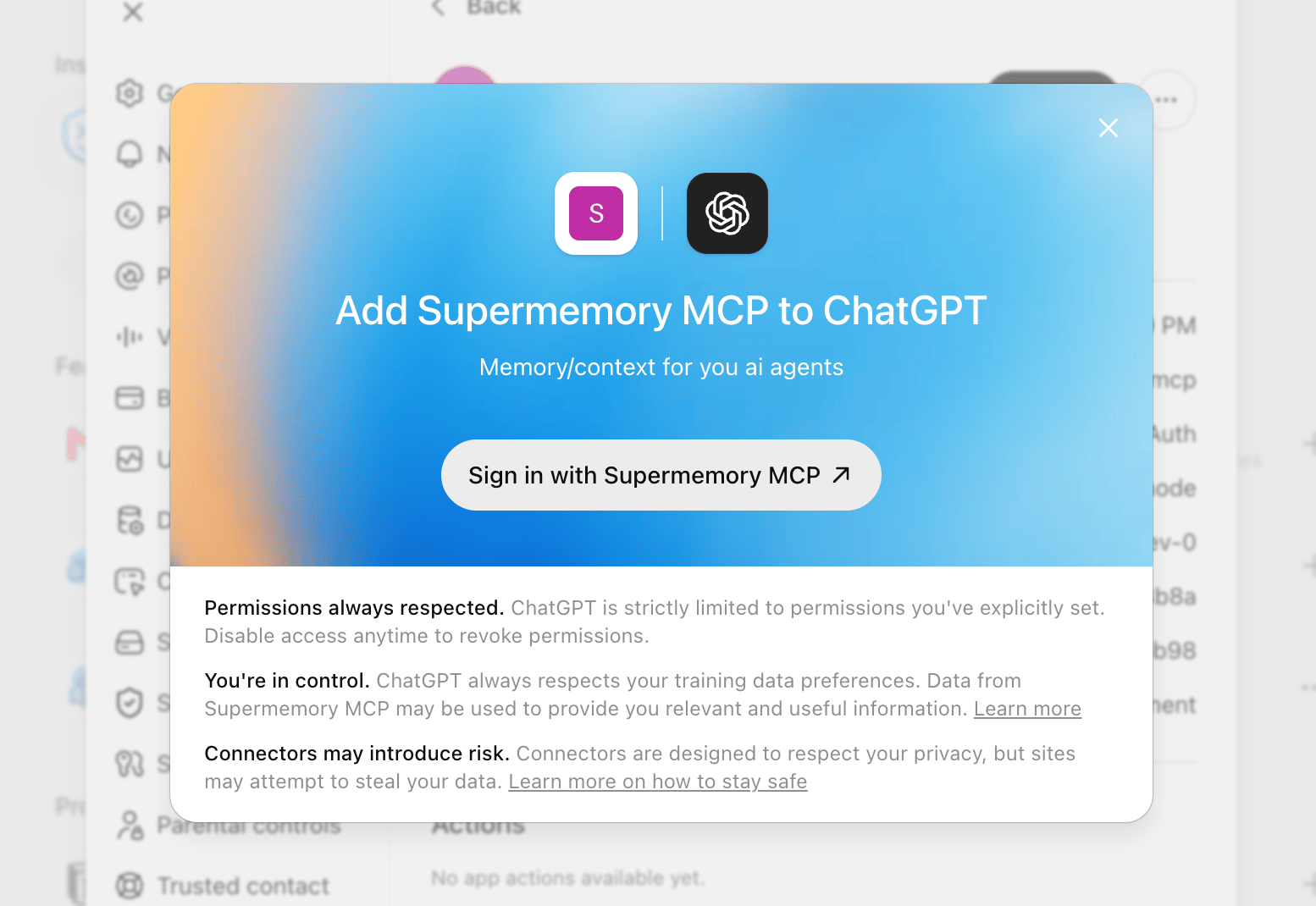
<img className="hidden dark:block" src="https://mintcdn.com/supermemory-soham-v5-docs-attach-to-include/2YgmU37JdCzCryiW/images/supermemory-mcp/chatgpt-web/step-9-sign-in-dark.png?fit=max&auto=format&n=2YgmU37JdCzCryiW&q=85&s=7f90b4bb2b949338faab5d2f3c082e6d" alt="ChatGPT authorization dialog for Supermemory MCP in dark mode" width="1632" height="1244" data-path="images/supermemory-mcp/chatgpt-web/step-9-sign-in-dark.png" />

<img className="block dark:hidden" src="https://mintcdn.com/supermemory-soham-v5-docs-attach-to-include/2YgmU37JdCzCryiW/images/supermemory-mcp/chatgpt-web/step-9-sign-in-light.png?fit=max&auto=format&n=2YgmU37JdCzCryiW&q=85&s=2ee01c1b39e5e959855a3dc6b48ea26b" alt="ChatGPT authorization dialog for Supermemory MCP in light mode" width="1554" height="1070" data-path="images/supermemory-mcp/chatgpt-web/step-9-sign-in-light.png" />

<Accordion title="If Supermemory asks you to choose an organization">
  Accounts with access to more than one organization may see an organization picker. Select the organization you want ChatGPT Web to use.
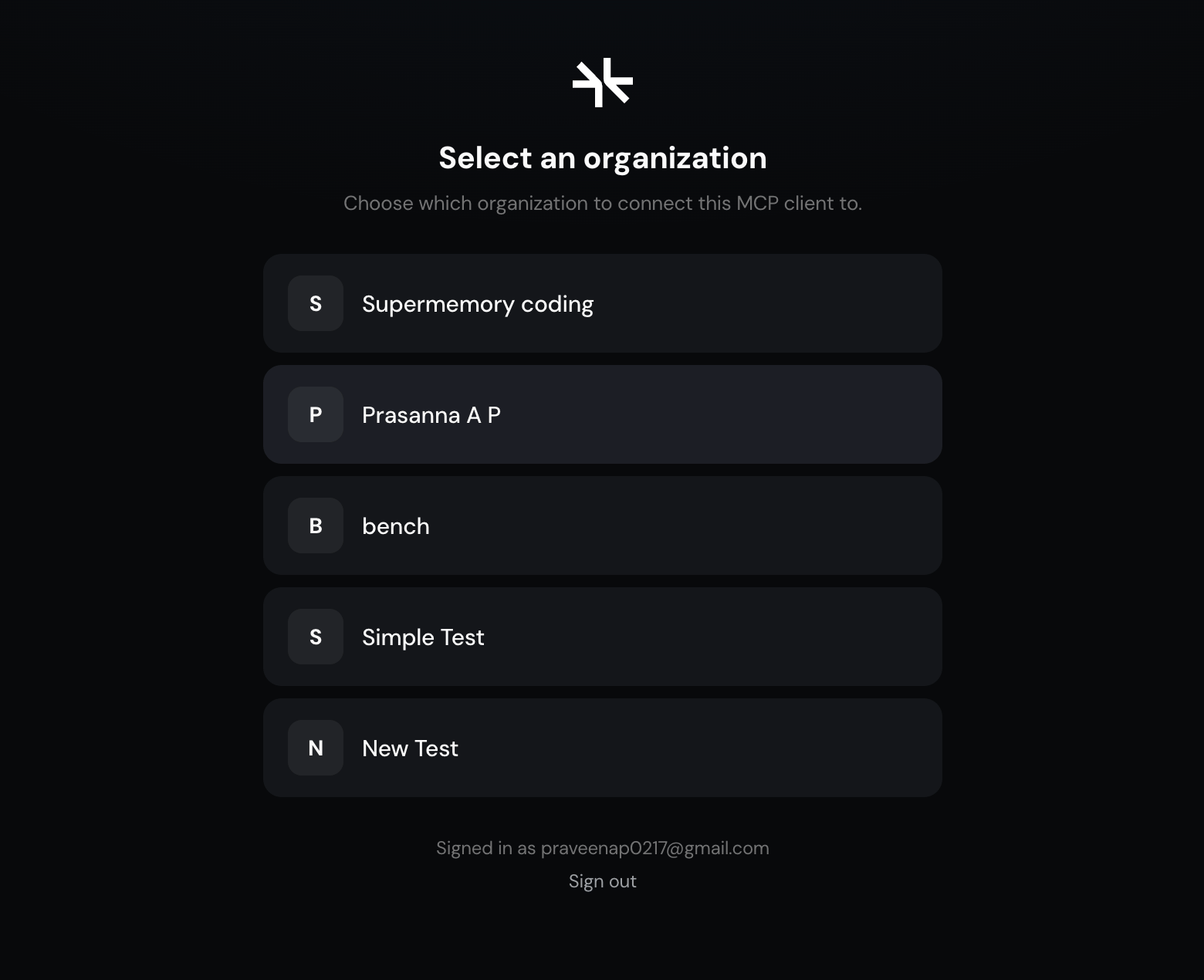
  <img src="https://mintcdn.com/supermemory-soham-v5-docs-attach-to-include/2YgmU37JdCzCryiW/images/supermemory-mcp/chatgpt-web/step-9-organization.png?fit=max&auto=format&n=2YgmU37JdCzCryiW&q=85&s=133c6a80c4e56bf8a762a911ad36eae3" alt="Supermemory organization picker shown for accounts with multiple organizations" width="1560" height="1270" data-path="images/supermemory-mcp/chatgpt-web/step-9-organization.png" />
</Accordion>

## Step 10: Approve access

On the Supermemory authorization page:

* Select **Read + Write** to let ChatGPT search and save Supermemory context. Select **Read only** if you only want search access.
* Select **Full access** to use every available space, or **Scoped** to choose specific spaces.
* Choose how long the connection should remain active.
* Select **Approve**.
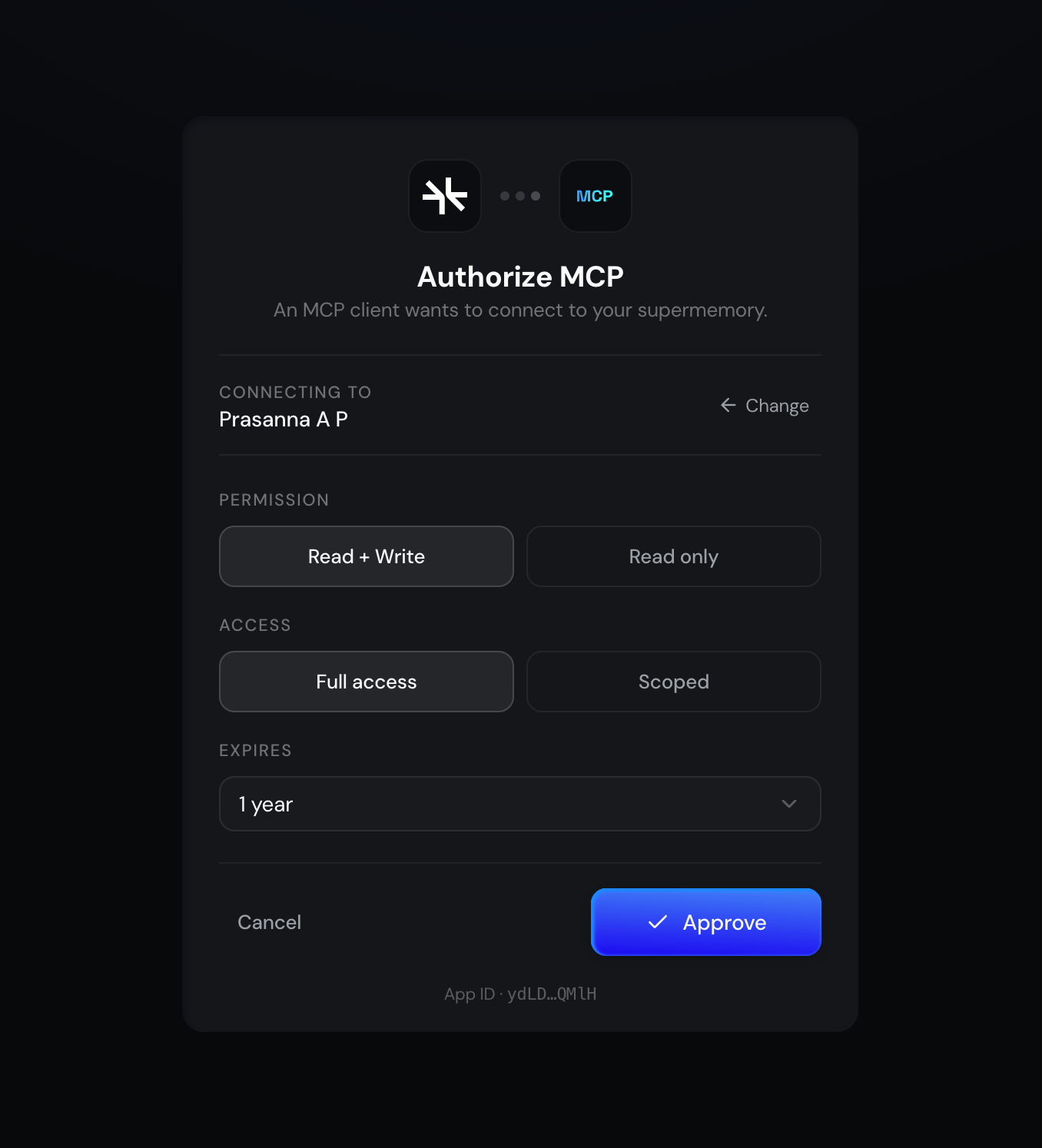
<img src="https://mintcdn.com/supermemory-soham-v5-docs-attach-to-include/p14OPaq5ji7ZESB5/images/supermemory-mcp/chatgpt-web/step-10-authorize.png?fit=max&auto=format&n=p14OPaq5ji7ZESB5&q=85&s=30ff02924c7139fa6641042848cc7239" alt="Supermemory MCP authorization page with permission, access, and expiration controls" width="1356" height="1494" data-path="images/supermemory-mcp/chatgpt-web/step-10-authorize.png" />

## Step 11: Start using Supermemory

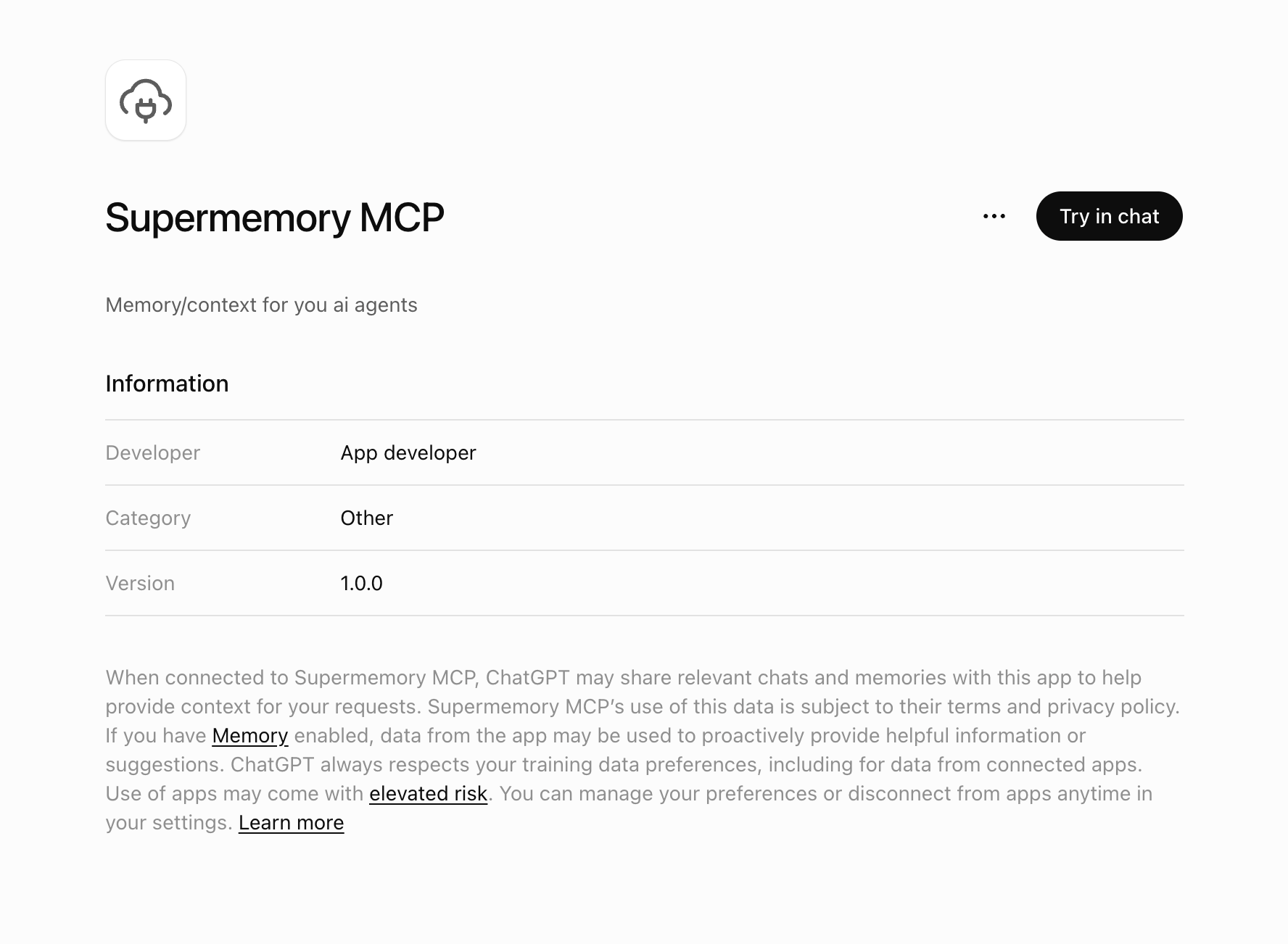
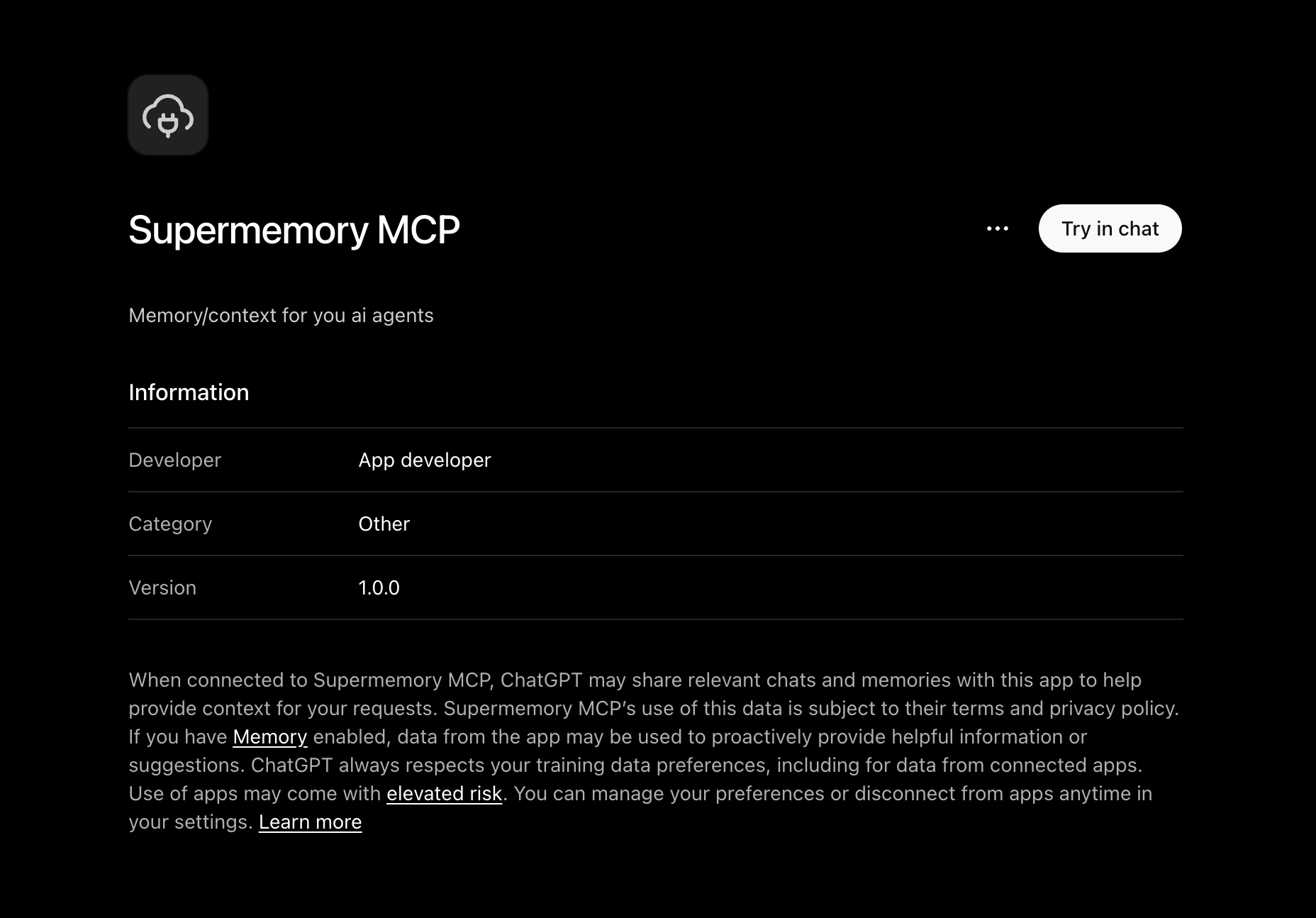
After approval, ChatGPT returns to the Supermemory MCP plugin page. Select **Try in chat**.
<img className="hidden dark:block" src="https://mintcdn.com/supermemory-soham-v5-docs-attach-to-include/p14OPaq5ji7ZESB5/images/supermemory-mcp/chatgpt-web/step-11-connected-dark.png?fit=max&auto=format&n=p14OPaq5ji7ZESB5&q=85&s=1c7409b4f96d1b30292889477a8ae673" alt="Connected Supermemory MCP page in ChatGPT Web dark mode" width="1856" height="1294" data-path="images/supermemory-mcp/chatgpt-web/step-11-connected-dark.png" />

<img className="block dark:hidden" src="https://mintcdn.com/supermemory-soham-v5-docs-attach-to-include/p14OPaq5ji7ZESB5/images/supermemory-mcp/chatgpt-web/step-11-connected-light.png?fit=max&auto=format&n=p14OPaq5ji7ZESB5&q=85&s=646ff766144ac8ccd7a2029682257422" alt="Connected Supermemory MCP page in ChatGPT Web light mode" width="1776" height="1302" data-path="images/supermemory-mcp/chatgpt-web/step-11-connected-light.png" />

## Done

Supermemory MCP is now ready to use in ChatGPT Web. You can manage or disconnect it later from the [Plugins page](https://chatgpt.com/plugins).

## Frequently asked questions

<AccordionGroup>
  <Accordion title="How do I make Supermemory the default memory in ChatGPT?">
    <Steps>
      <Step title="Turn off ChatGPT memory">
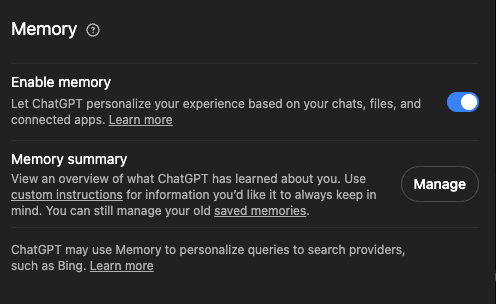
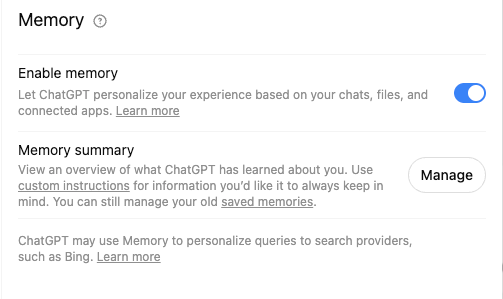
        Turn **Enable memory** off.

        <img className="hidden dark:block" src="https://mintcdn.com/supermemory-soham-v5-docs-attach-to-include/p14OPaq5ji7ZESB5/images/supermemory-mcp/chatgpt-web/faq-memory-dark.png?fit=max&auto=format&n=p14OPaq5ji7ZESB5&q=85&s=e9083443d607ff43cb087d805106b00e" alt="ChatGPT Personalization settings in dark mode showing the Enable memory switch and Memory summary" width="496" height="304" data-path="images/supermemory-mcp/chatgpt-web/faq-memory-dark.png" />

        <img className="block dark:hidden" src="https://mintcdn.com/supermemory-soham-v5-docs-attach-to-include/p14OPaq5ji7ZESB5/images/supermemory-mcp/chatgpt-web/faq-memory-light.png?fit=max&auto=format&n=p14OPaq5ji7ZESB5&q=85&s=494483cff4af484a21abcb43bb2f2fc8" alt="ChatGPT Personalization settings in light mode showing the Enable memory switch and Memory summary" width="503" height="299" data-path="images/supermemory-mcp/chatgpt-web/faq-memory-light.png" />

        Turning memory off does not delete your past chats.
      </Step>

      <Step title="Optionally copy your existing memory">
        If you want to keep a copy of ChatGPT's existing memory, select **Manage** and copy the memory summary. Open a chat with Supermemory enabled, paste the summary, and say `Add this to Supermemory`.
      </Step>

      <Step title="Make Supermemory the default">
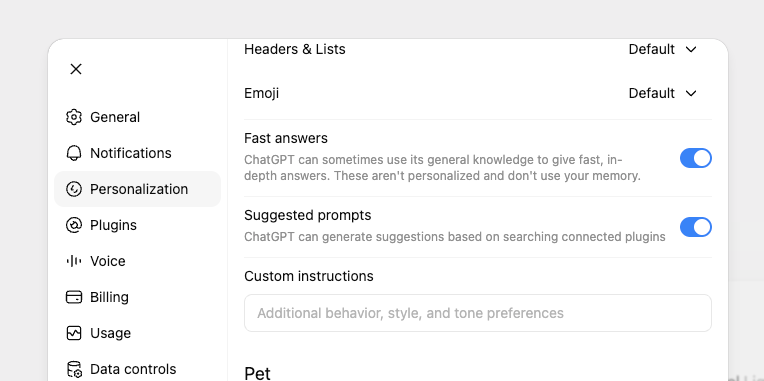
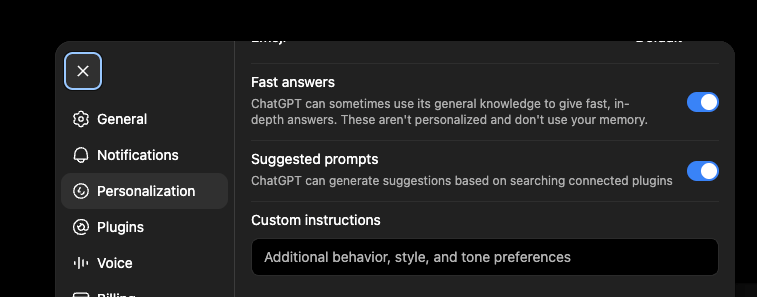
        Paste this into **Custom instructions**:
        <img className="hidden dark:block" src="https://mintcdn.com/supermemory-soham-v5-docs-attach-to-include/p14OPaq5ji7ZESB5/images/supermemory-mcp/chatgpt-web/faq-custom-instructions-dark.png?fit=max&auto=format&n=p14OPaq5ji7ZESB5&q=85&s=5fc90d674c29a1152d204bd5a11b1658" alt="ChatGPT Personalization settings in dark mode showing the Custom instructions field" width="757" height="297" data-path="images/supermemory-mcp/chatgpt-web/faq-custom-instructions-dark.png" />

        <img className="block dark:hidden" src="https://mintcdn.com/supermemory-soham-v5-docs-attach-to-include/p14OPaq5ji7ZESB5/images/supermemory-mcp/chatgpt-web/faq-custom-instructions-light.png?fit=max&auto=format&n=p14OPaq5ji7ZESB5&q=85&s=baebc575d8a7d0c5bd17666c38cfc29a" alt="ChatGPT Personalization settings in light mode showing the Custom instructions field" width="764" height="381" data-path="images/supermemory-mcp/chatgpt-web/faq-custom-instructions-light.png" />

        ```text theme={null}
        Use Supermemory MCP as my default memory and workspace memory whenever its tools are available. Use it first for both recall and saving new memories.
        ```
      </Step>
    </Steps>
  </Accordion>
</AccordionGroup>


This documentation is built and hosted on [Mintlify](https://mintlify.com), a developer documentation platform.